Apache Ambari Upgrade
- Creation or update of the local package repository for upgrades with restricted or no Internet access.
- Verification of the upgrade prerequisites.
Apache Ambari Upgrade
Package Repository
- Instructions
- Video
Execute the following procedures on all Cluster machines to define a new package repository for Apache Ambari:
-
Access the directory where the Ambari package repository file (repo file) is located:
Terminal inputcd /etc/yum.repos.d/ -
Run the command below to download the
ambari.repofile and save it to the local directory /etc/yum.repos.d/, to be used by the YUM package manager.Terminal inputwget -O /etc/yum.repos.d/ambari.repo https://repo.tecnisys.com.br/repository/public/tdp/3.0/el-9-x86_64/ambari.repoTerminal inputcurl -o /etc/yum.repos.d/ambari.repo https://repo.tecnisys.com.br/repository/public/tdp/3.0/el-9-x86_64/ambari.repowarningThe commands suggested below overwrite the
/etc/yum.repos.d/ambari.repofile, if it already exists in the directory. If necessary, make a backup of the file with the current definitions first. -
In the ambari.repo file, replace the USER and PASS variables, present in the URLs of the baseurl and gpgkey properties, respectively, with your username and password registered on the Tecnisys Website. If you are using a local repository, adjust these URLs.
-
After defining the new TDP version package repository, we recommend updating the yum/dnf cache:
Terminal inputyum clean all; yum makecache timer;
Ambari Agent Upgrade
- Instructions
- Video
With the new package repository defined, start the Ambari upgrade by updating the Ambari Agent component.
Communication between the Ambari Agent and the Ambari Server is suspended during the upgrade. However, the services of the other Cluster components continue running.
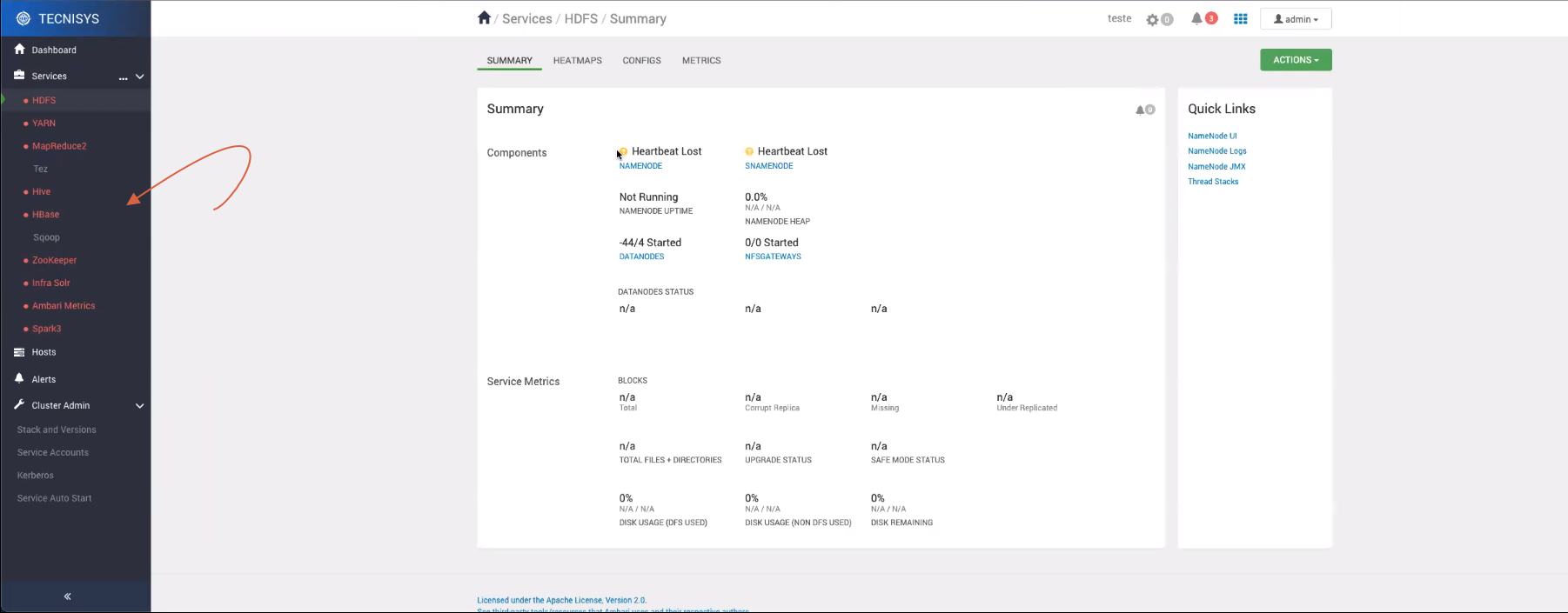
To upgrade the Ambari Agent, execute the following procedure on all Cluster machines:
-
Stop the Ambari Agent service:
Terminal inputambari-agent stop -
Upgrade the Ambari Agent binaries:
Terminal inputyum upgrade ambari-agent -ynoteAny customizations to the
ambari-agent.inifile can be recovered from the generated backup file:ambari-agent.ini.old -
Start the Ambari Agent service:
Terminal inputambari-agent start
Ambari Server Upgrade
- Instructions
- Video
After upgrading the Ambari Agent on all Cluster machines, perform the Ambari Server upgrade.
This operation requires stopping the Ambari Server service.
It is recommended to perform a backup of the Ambari metadata database before starting this operation.
Execute the following procedure only on the machine where the Ambari Server is installed:
-
Stop the Ambari Server service:
Terminal inputambari-server stop -
Upgrade the Ambari Server binaries:
Terminal inputyum upgrade ambari-server -y Figure 2 - Ambari Server binary upgrade
 -
Upgrade the Ambari Server metadata:
Terminal inputambari-server upgradenoteBasically, this command performs the following operations:
- Ambari property adjustments.
- Metadata database schema update.
- Check for new TDP stack versions.
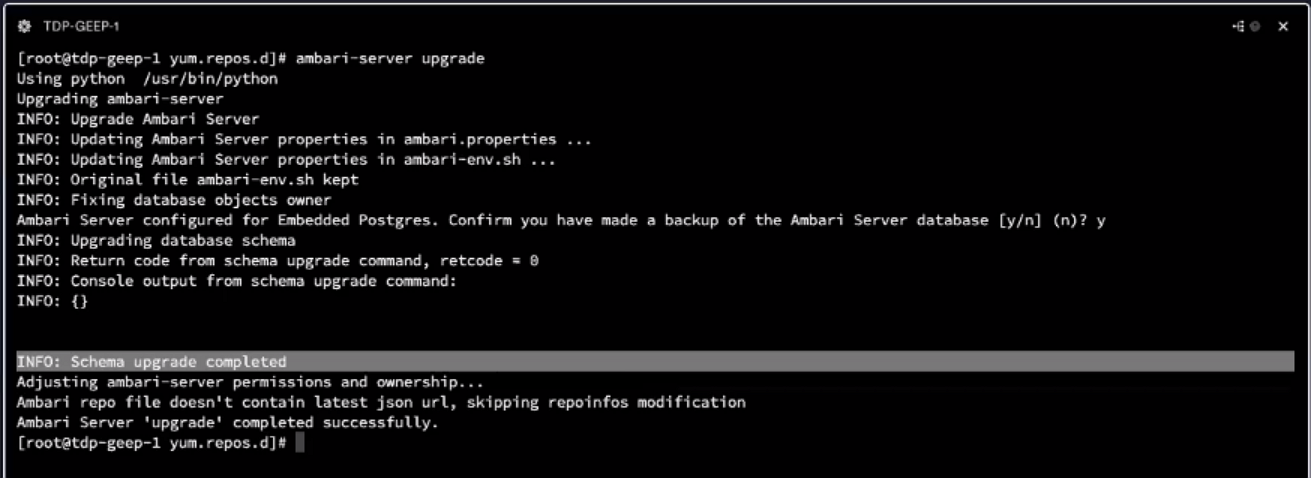 Figure 3 - Ambari Server Upgrade
 -
Start the Ambari Server:
Terminal inputambari-server start -
Check the new Ambari version in the web interface by clicking the user button, located in the upper right corner of the page, and then the About option.
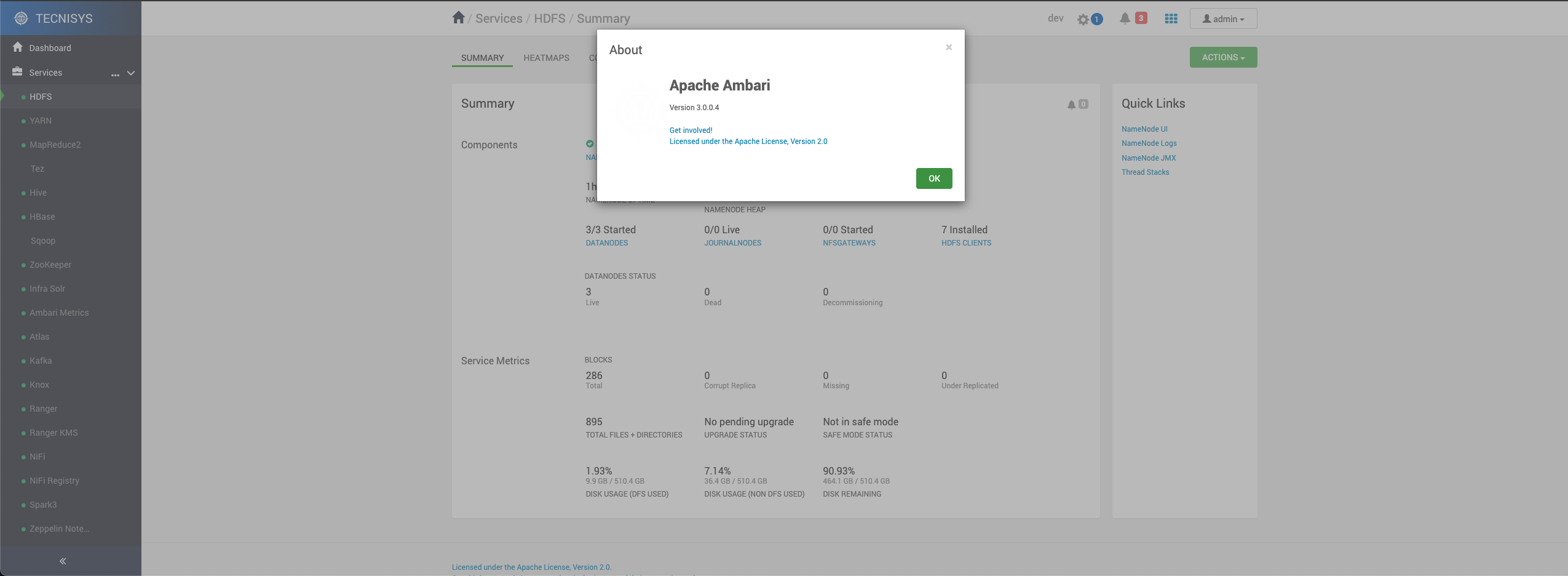 Figure 4 - Ambari Version
 -
Check the new TDP stack version in the web interface by clicking the Stack and Versions option in the side menu, and then the VERSIONS tab.
importantIf the 'Host component out of sync' alert is displayed in the VERSIONS tab, execute the procedure defined in Current Stack Version Update to correct this inconsistency.