Our support.
Answers to the most common questions about TDP support provided by Tecnisys and its partners.
How to get support for TDP?
Start with free support and move up when your business requires more.
For all registered users
Basic support
Tecnisys offers basic, free support to all registered users.
How to access: register now on the Tecnisys website to access our support page.
When your business requires more
Specialized services
Priority support, SLAs, 24x7 technical availability, first response within 15 minutes, advanced monitoring, risk analysis, incident prevention, consulting, and other specialized services.
To learn more: contact us.
How to report a failure in TDP?
In the Support area, you can open a ticket to report the failure and track its resolution.
What is the Tecnisys Support Agent (TSA)?
The Tecnisys Support Agent is a service installed alongside Apache Ambari to facilitate the identification of machines and data environments subscribed at the time of opening tickets in the Support Area.
Unobtrusive
The TSA service runs in the background and does not interfere with the performance of the operating system or the database.
No direct connection
The service does not require a direct Internet connection.
Protected identification
The machine identification file (subscription.info), generated daily by the TSA, is kept securely and encrypted in the /opt/tecnisys-support-agent directory.
How to install the Tecnisys Support Agent (TSA) separately?
Package Download
- Instructions
- Video
To install the Tecnisys Support Agent separately, follow the steps below:
-
Register for free on the Tecnisys website;
-
Access the Tecnisys Public Package Repository;
-
Click the Sign out button located in the upper right corner of the page;
-
Enter your access credentials (the same as the Tecnisys website);
-
Click the Browse option located in the left sidebar;
-
In the central navigation area, access: yum >> tecnisys >> tsa
-
Select the installation package (
.rpm) of the latest version available for your operating system; -
Click the Path property link located in Summary on the right side of the page to start downloading the package.
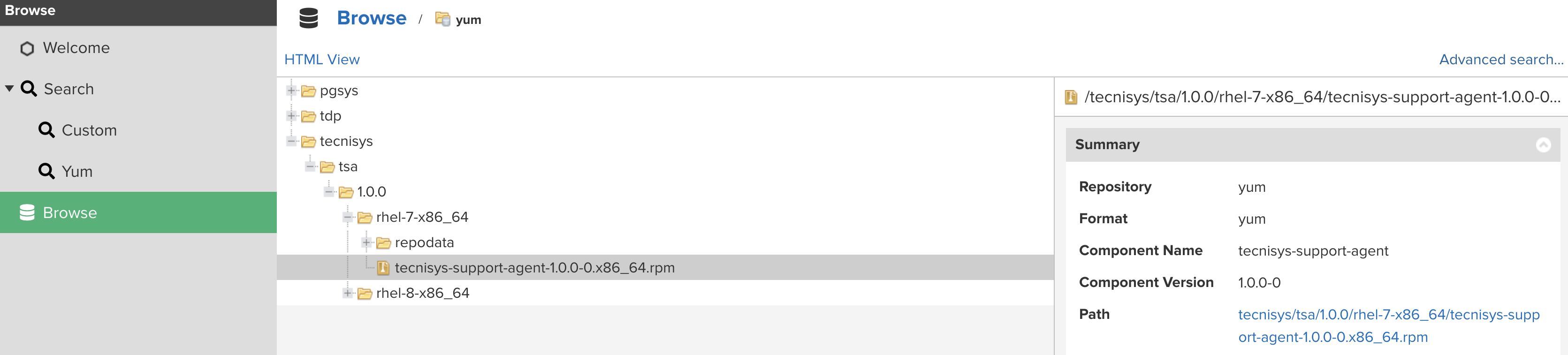 Figure 1 - Download the TSA installation package
Package Installation
- Instructions
- Video
-
Install the TSA installation package on the subscribed machine, as shown in the example below:
Terminal inputrpm -ivh tecnisys-support-agent-1.0.0-0.x86_64.rpm -
After the installation, run the following command to enable and start the TSA service:
Terminal inputsystemctl enable --now tecnisys-support-agent.service -
To check the status of the TSA service, run the following command:
Terminal inputsystemctl status tecnisys-support-agent.service
You can also download the TSA installation package directly from the terminal via curl or wget.
See the example below:
- Instructions
- Video
wget --user USUARIO --password SENHA https://repo.tecnisys.com.br/yum/tecnisys/tsa/1.0.0/rhel-8-x86_64/tecnisys-support-agent-1.0.0-0.x86_64.rpm