Update via ArgoCD
This guide describes the process of updating TDP Kubernetes components using ArgoCD as a GitOps tool.
With ArgoCD, updates are managed declaratively through Application manifests stored in the Git repository.
With the GitOps pattern, the update consists of editing the manifests in the Git repository — ArgoCD detects the change and automatically applies it to the cluster.
- Preparation
- Update
- Validation
- Troubleshooting
Update Preparation
Before changing manifests, check the current state of the cluster.
- Commands
- Videos
Check the status of Applications
List all TDP Applications and their status:
argocd app list

What to validate:
- All Applications must have
STATUSSynced - All must have
HEALTHHealthy
Why validate before updating:
- Confirm that the current state in the cluster matches the desired state in Git
- Ensure there is no pending reconciliation error
- Avoid starting the update on an already inconsistent or degraded Application
Check pods and workload readiness
kubectl get pods -n <NAMESPACE>

kubectl get statefulset -n <NAMESPACE>

If the application uses Deployment, also validate:
kubectl get deploy -n <NAMESPACE>
What to validate:
- The pods are in
STATUSRunning - Pods
READYcolumn is complete, for example1/1 - The application's StatefulSets or Deployments show all ready replicas, for example
1/1,2/2or3/3
Why validate before updating:
- Ensure that the application is already stable before the change
- Avoid confusing previous failure with failure caused by the update
- Reduce the risk of unavailability during the process
Check Helm Releases
helm list -n <NAMESPACE>

Confirm the installed versions and deployed status of each release.
- argocd app list
- kubectl get pods
- kubectl get statefulset
- helm list
Update Application Manifests
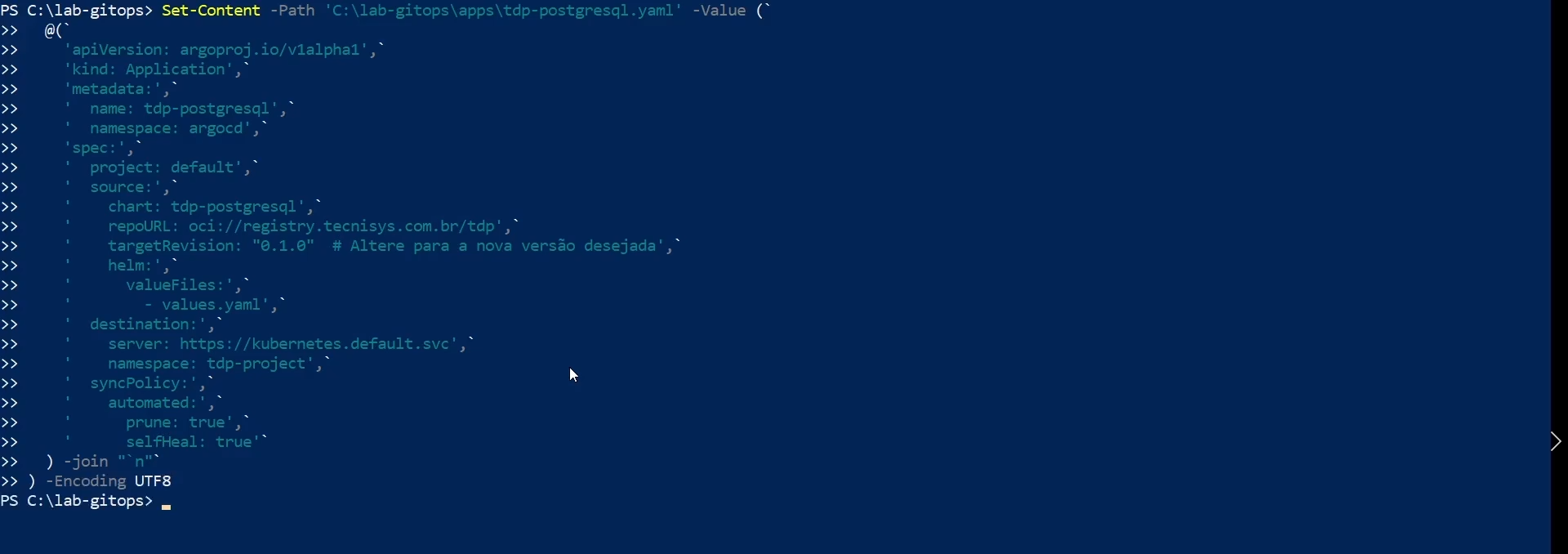
The update via ArgoCD consists of modifying the Application manifests in the Git repository, changing the chart version (targetRevision) to the new desired version.
- Commands
- Videos
Change Chart Version
Edit the Application manifest of the component you want to update. The targetRevision field defines the Helm Chart version used. Example for PostgreSQL (base component that is usually installed first):
apiVersion: argoproj.io/v1alpha1
kind: Application
metadata:
  name: tdp-postgresql
  namespace: argocd
spec:
  project: default
  source:
    repoURL: oci://registry.tecnisys.com.br/tdp
    chart: tdp-postgresql
    targetRevision: 3.0.1  # Change to the new desired version
    helm:
      valueFiles:
        - values.yaml
  destination:
    server: https://kubernetes.default.svc
    namespace: <NAMESPACE>
  syncPolicy:
    automated:
      prune: true
      selfHeal: true
    syncOptions:
      - CreateNamespace=true
Change Configuration Values
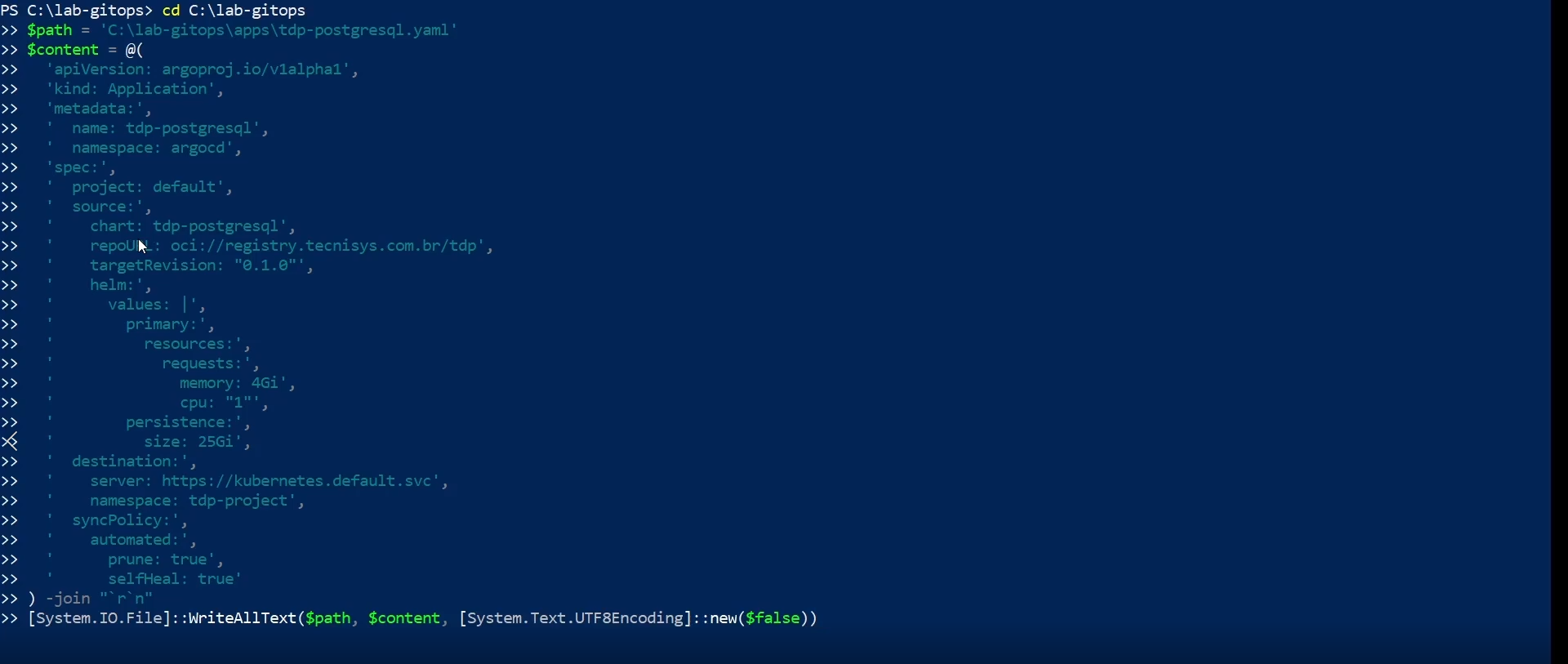
To update configuration values along with the version, modify the helm.values field or the referenced values.yaml file. Example for PostgreSQL (resources, storage, etc.):
spec:
  source:
    chart: tdp-postgresql
    repoURL: oci://registry.tecnisys.com.br/tdp
    targetRevision: 3.0.1
    helm:
      values: |
        primary:
          resources:
            requests:
              memory: 2Gi
              cpu: "1"
        persistence:
          size: 20Gi
Commit Changes to Git
After editing the manifests, commit and push the changes to the Git repository:
git add apps/
git commit -m "chore: update tdp-postgresql to new version"
git push origin main
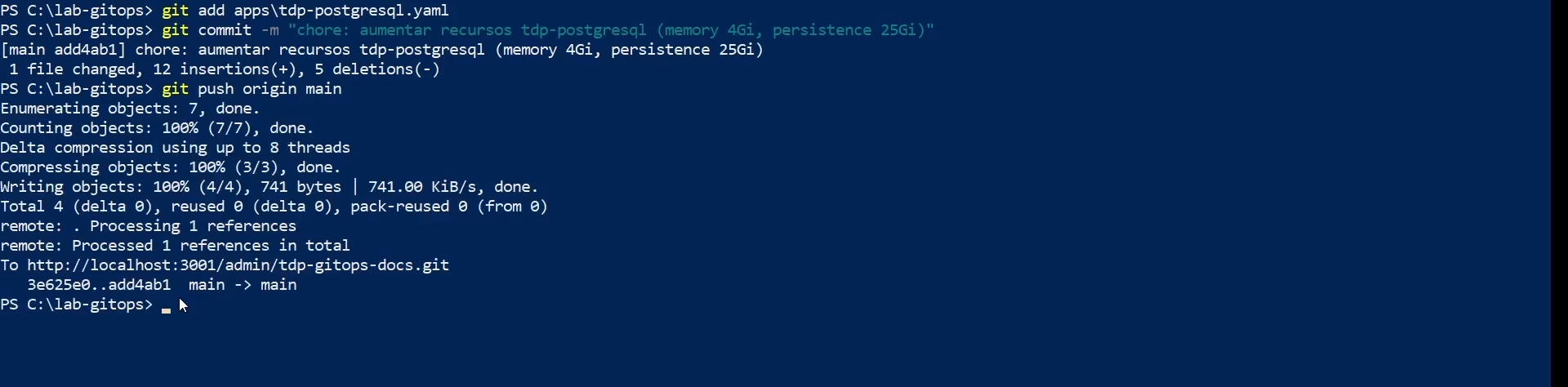
ArgoCD will automatically detect changes to the repository and start the synchronization process, according to the configured sync strategy.
Synchronization Strategies
Automatic Synchronization
With automatic sync enabled, ArgoCD applies changes detected in Git without manual intervention:
syncPolicy:

automated:
prune: true # Remove resources that are no longer in Git
selfHeal: true # Corrects discrepancies between the actual and desired state
Automatic synchronization is recommended for development and staging environments. In production, consider manual sync for greater control.
Manual Synchronization
For updates in production, disable automatic synchronization and perform the sync manually:
syncPolicy: {} # Sem política automática
argocd app sync tdp-postgresql
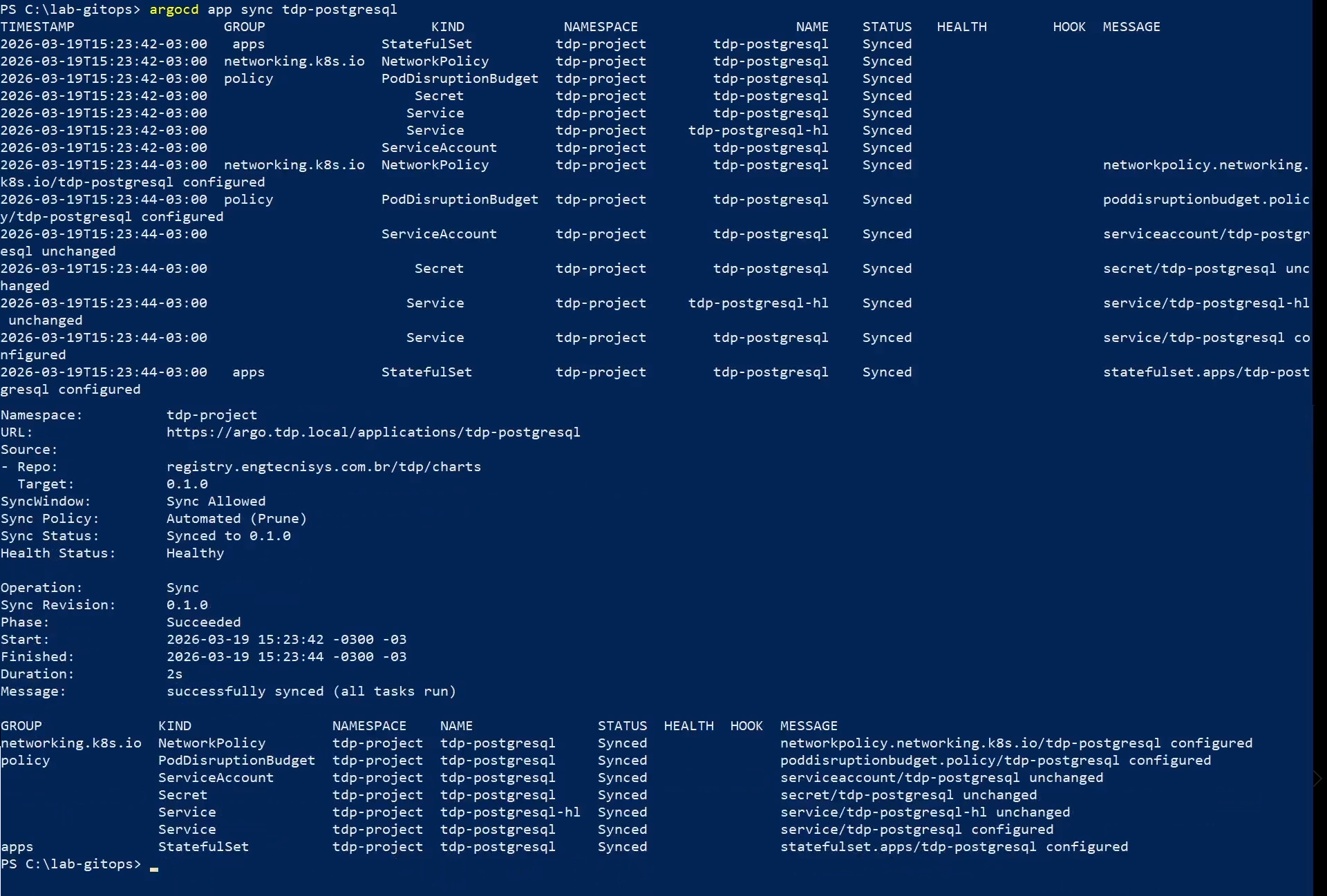
Or click the Application's Sync button in the ArgoCD web interface.
Sync Waves
To control the component update order, use sync waves. Features with smaller wave values are synchronized first:
metadata:
  annotations:
    argocd.argoproj.io/sync-wave: "1"
| Wave | Components |
|---|---|
| 0 | CRDs (tdp-crds) |
| 1 | Infrastructure (tdp-argo, tdp-postgresql) |
| 2 | Messaging (tdp-kafka) |
| 3 | Storage (tdp-hive-metastore, tdp-iceberg, tdp-ozone, tdp-deltalake) |
| 4 | Security (tdp-ranger) |
| 5 | Processing (tdp-nifi, tdp-spark, tdp-trino, tdp-clickhouse) |
| 6 | Tools (tdp-airflow, tdp-jupyter, tdp-superset, tdp-openmetadata, tdp-cloudbeaver) |
Progressive Rollouts
Dry Run
Simulate synchronization before applying to check what will change:
argocd app sync tdp-postgresql --dry-run
Preview of Differences
Visualize the differences between the current state of the cluster and the desired state in Git:
argocd app diff tdp-postgresql
Selective Synchronization
Sync only specific resources from an Application, rather than all at once:
argocd app sync tdp-postgresql --resource apps:StatefulSet:tdp-postgresql
- Edit manifest
- git push
- argocd app sync
Post-Update Validation
After applying the changes to the Git repository, use the commands below to track the synchronization status.
- Commands
- Videos
Check the status of Applications
argocd app list
| Sync Status | Description |
|---|---|
| Synced | The cluster state matches that declared in the manifest |
| OutOfSync | There are differences between the manifest and the cluster |
| Unknown | ArgoCD was unable to determine status |
| Health Status | Description |
| --------------- | --------------------------------------------------- |
| Healthy | All Application resources are operational |
| Progressing | Resources are being created or updated |
| Degraded | One or more resources have problems |
| Suspended | Sync is paused |
Check a specific Application
argocd app get tdp-postgresql
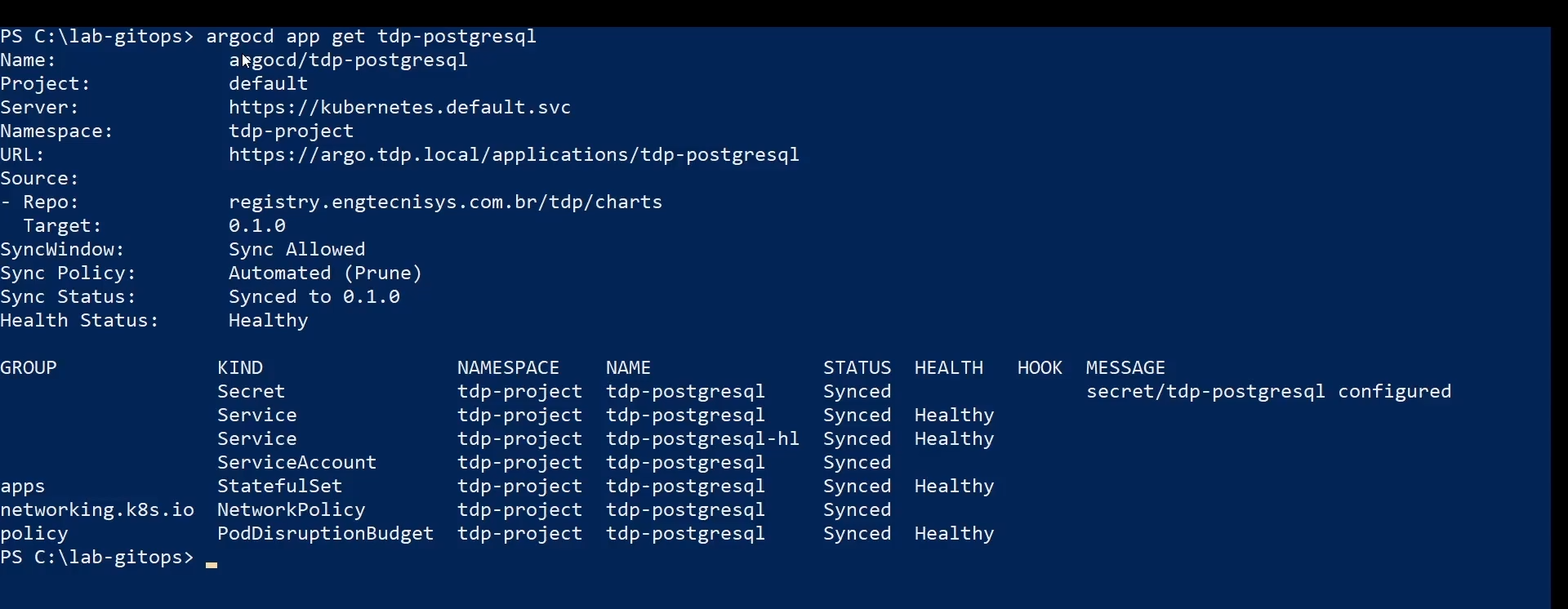
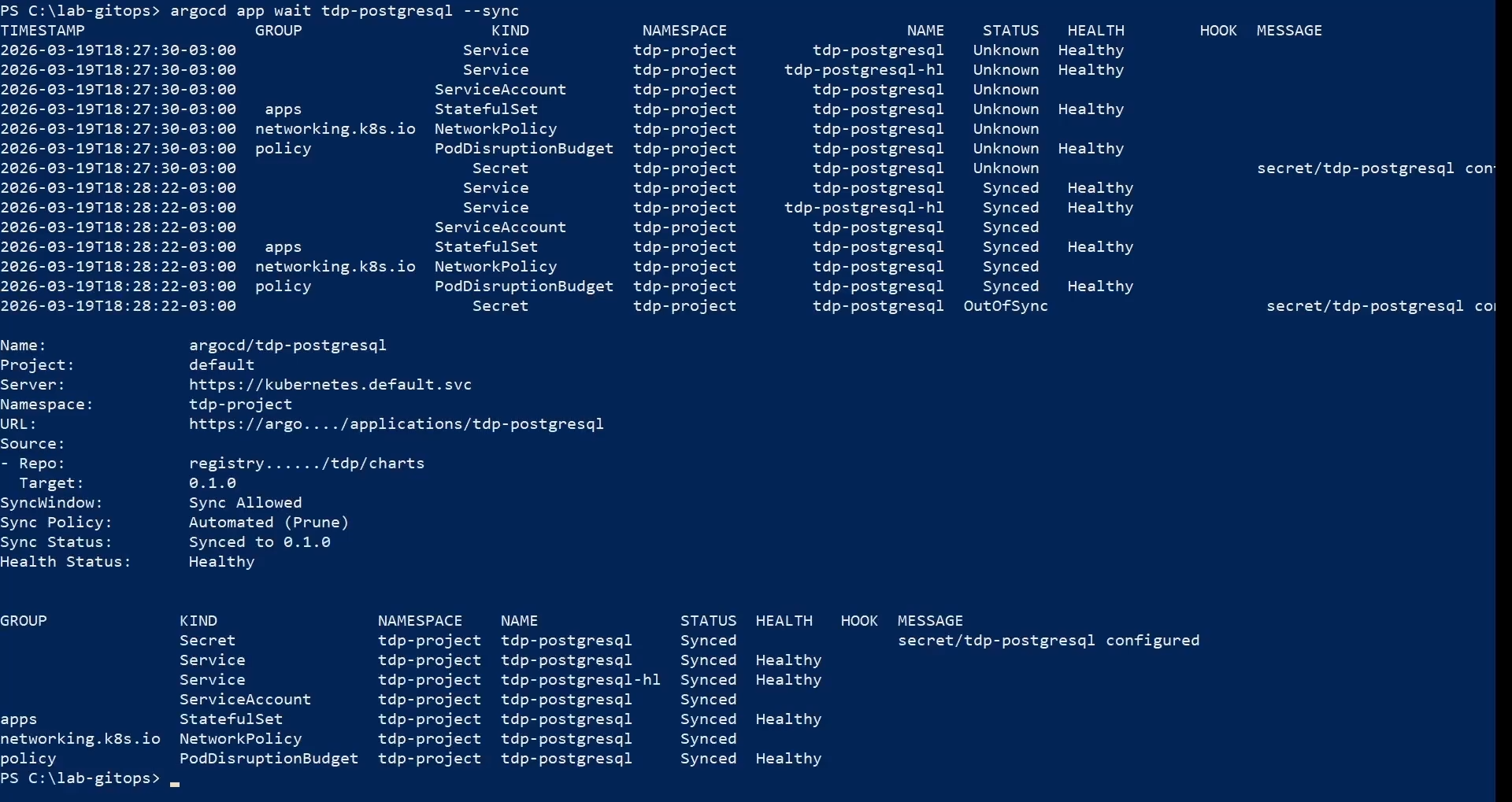
To track progress in real time:
argocd app wait tdp-postgresql --sync
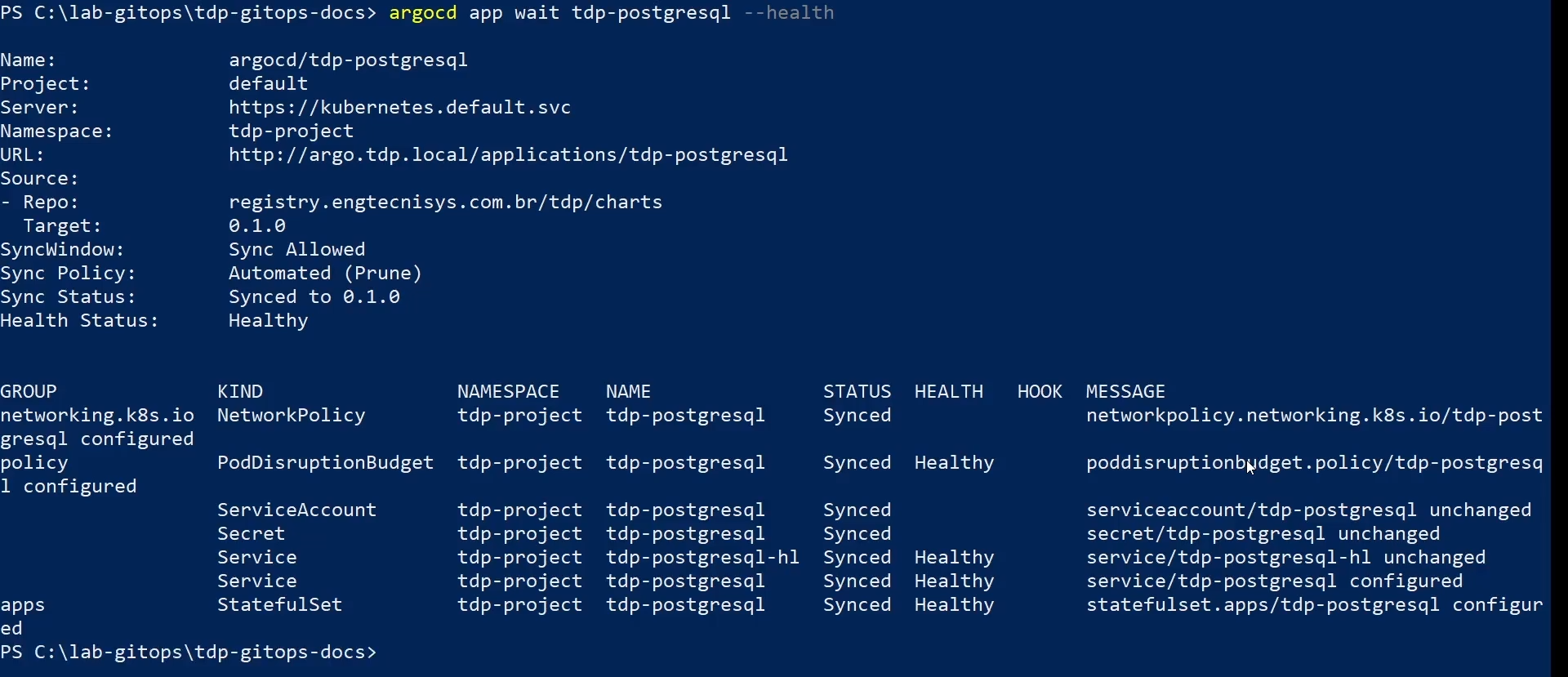
Check resource health
argocd app wait tdp-postgresql --health
Check pods and workload readiness
kubectl get pods -n <NAMESPACE>
kubectl get statefulset -n <NAMESPACE>
If the application uses Deployment, also validate:
kubectl get deploy -n <NAMESPACE>
What to confirm:
- The pods are in
STATUSRunning - Pods
READYcolumn is complete, for example1/1 - The application's StatefulSets or Deployments show all ready replicas, for example
1/1,2/2or3/3
Check Helm Revision
Confirm that the release revision was successfully incremented:
helm history <RELEASE_NAME> -n <NAMESPACE>

- argocd app list
- argocd app get
- argocd app wait --sync
- argocd app wait --health
- helm history
- kubectl get pods
- kubectl get statefulset
Troubleshooting
- Commands
- Video
Application in OutOfSync or Degraded
If an Application shows OutOfSync or Degraded status:
-
Check operation details and errors:
Terminal inputargocd app get tdp-postgresql --show-operation -
Analyze the ArgoCD controller logs:
Terminal inputkubectl logs -n argocd -l app.kubernetes.io/name=argocd-application-controller --tail=200 -
Try to synchronize manually:
Terminal inputargocd app sync tdp-postgresql
Synchronization Conflicts
If there are resources manually modified in the cluster that conflict with Git:
Option 1 — Force sync (overwrites the cluster with Git):
argocd app sync tdp-postgresql --force
Option 2 — Self-heal (let ArgoCD automatically correct deviations):
syncPolicy:
  automated:
    selfHeal: true
Automatic Retry
Configure automatic retry so that ArgoCD tries again in case of temporary failures:
syncPolicy:
  retry:
    limit: 5
    backoff:
      duration: 5s
      factor: 2
      maxDuration: 3m
Rollback the Update
If the update fails and you need to roll back, change the targetRevision in the Git manifest back to the previous version and commit:
git revert HEAD
git push origin main
ArgoCD will detect the rollback and synchronize the cluster to the previous state.
For details about rollback, see the Rollback page.
Video coming soon.