General Configuration
What configuration is for
Configuration is the step where you adapt a TDP Kubernetes component to your environment and operating mode. It defines how the component will be deployed, what resources it will use, how it will be exposed, what dependencies it requires, and how it will integrate with the other services on the platform.
In practice, configuration allows you to adjust parameters such as namespace, CPU, memory, storage, secrets, external access, persistence, and shared integrations — such as database, object storage, and supporting services. This means the same component can be used in different contexts, such as lab, staging, and production, without changing its core function.
For example:
- Connecting Airflow to the cluster's PostgreSQL instead of using the built-in database
- Telling Kafka how many broker replicas and which minimum replication factor to use
- Informing NiFi where the LDAP server is for authentication
- Configuring the Ozone S3 Gateway with the right credentials so Spark can write data
Configuration parameters apply regardless of the installation method used. The goal of this page is to explain what can typically be configured in a TDP component and how those adjustments work in practice.
Throughout this section, you will see the most common configuration patterns across TDP components:
| Area | What it defines | Examples |
|---|---|---|
| Cluster execution | Where and with what resources the component will run. | Namespace, CPU, memory, replicas, and limits. |
| Persistence | How data will be stored. | Volumes, disk, storage class, and retention. |
| Service exposure | How the component will be accessed. | Service, port, ingress, hostname, and TLS. |
| Security and access | How credentials and sensitive data will be provided. | Secrets, users, passwords, tokens, and secret references. |
| Integrations | How the component connects to other services. | PostgreSQL, S3/Ozone, endpoints, and shared services. |
| Application method | How the configuration reaches the cluster. | Helm, ArgoCD/GitOps, and tdpctl in the future. |
For exact details per component and version, also refer to the component's specific page and the values supported by its chart.
Run helm show values oci://registry.tecnisys.com.br/tdp/charts/<chart> to export all available parameters with their default values and explanatory comments.
Components are distributed as Helm charts and generally accept customization through values files (YAML) passed during installation or update (for example, with the -f option).
The YAML and command-line snippets on this page are illustrative.
The root prefix (tdp-airflow, tdp-trino, etc.) and the exact key structure vary by component.
Use the component's configuration page in this guide and, for your exact package version, export the predefined values with helm show values oci://registry.tecnisys.com.br/tdp/charts/<chart>.
How to apply the configuration
The steps below are the same regardless of the component. What changes is the environment context — the actual parameters come from the component's configuration page.
- Via Helm
- Via ArgoCD
- Commands
- Videos
How it works
Helm uses YAML files called values to parameterize each chart's templates. You pass these values during the installation or update of the component.
There are three main ways to provide values:
Values file — the recommended approach.
Create a YAML with only the keys you want to change and pass it with -f:
helm upgrade --install <release> oci://registry.tecnisys.com.br/tdp/charts/<chart> \
  -n <namespace> --create-namespace \
  -f my-values.yaml
--set flag — for one-off changes directly on the command line:
helm upgrade --install <release> oci://registry.tecnisys.com.br/tdp/charts/<chart> \
  -n <namespace> --create-namespace \
  --set parameter.key=value
Combining files — multiple files merged in order, with the last ones taking precedence:
helm upgrade --install <release> oci://registry.tecnisys.com.br/tdp/charts/<chart> \
  -n <namespace> --create-namespace \
  -f values-base.yaml \
  -f values-production.yaml
Step by step
- Export the values accepted by the chart to understand the available parameters:
helm show values oci://registry.tecnisys.com.br/tdp/charts/<chart> > values-default.yaml

- Create a file (e.g.
my-values.yaml) with the values to change:
code .\my-values.yaml
- Adjust the desired parameters, such as namespace, resources, or integrations:
resources:
  requests:
    cpu: "500m"
    memory: "1Gi"
  limits:
    cpu: "1"
    memory: "2Gi"
You do not need to copy the entire chart default file. Include only the values you want to override.
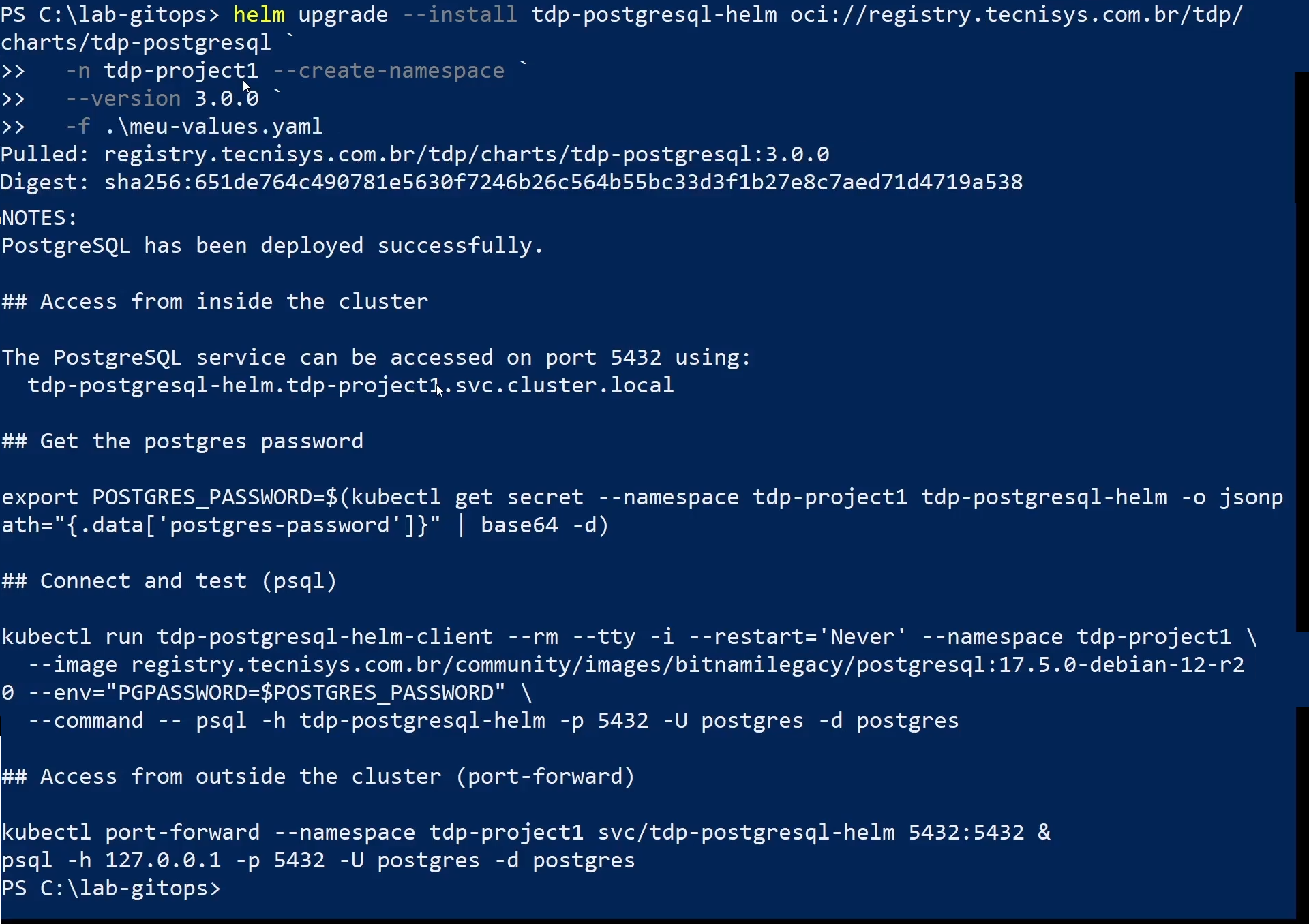
- Apply the configuration with the file you created:
helm upgrade --install <release> oci://registry.tecnisys.com.br/tdp/charts/<chart> \
  -n <namespace> --create-namespace \
  -f my-values.yaml
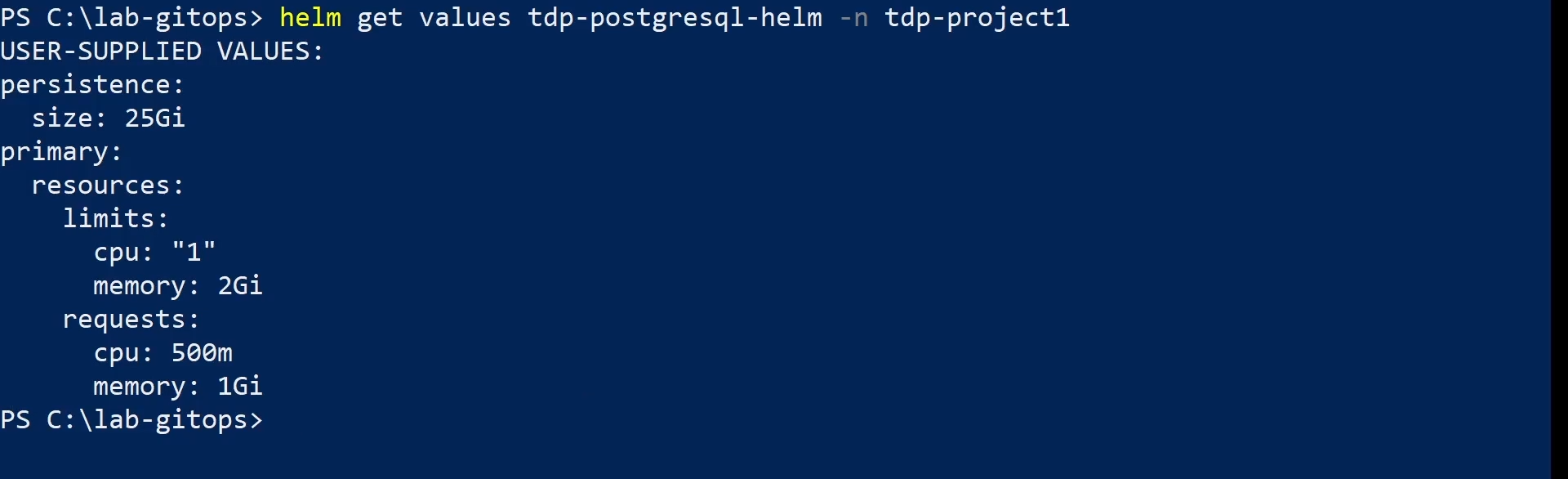
- Verify that the configured values were applied:
helm get values <release> -n <namespace>
- Check the pods:
kubectl get pods -n <namespace>

For stateful components such as PostgreSQL, also validate:
kubectl get statefulset -n <namespace>

For components using Deployment, also validate:
kubectl get deploy -n <namespace>
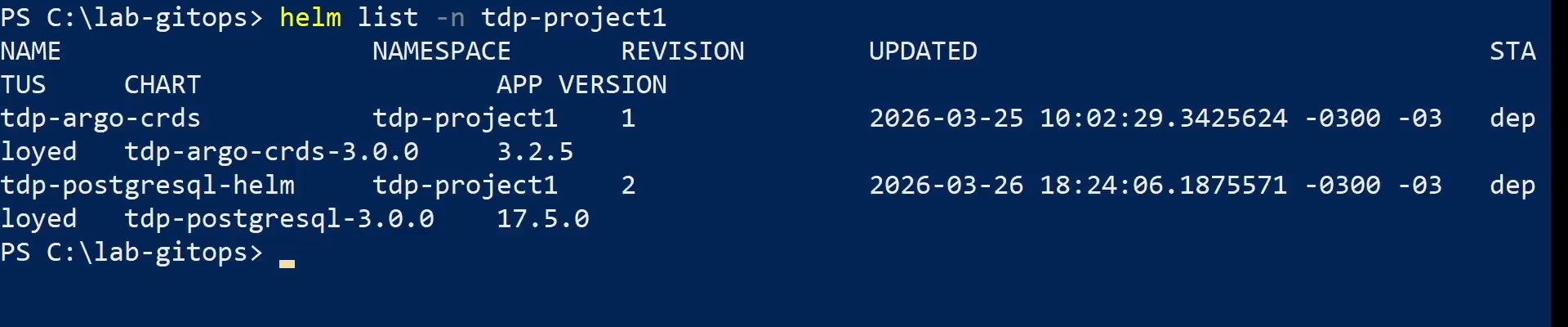
- Confirm the release has status
deployedand an updated revision:
helm list -n <namespace>
- helm show values
- helm upgrade --install
- helm get values
- kubectl get pods
- kubectl get statefulset
- helm list
- Commands
- Videos
How it works
In the GitOps flow with ArgoCD, configuration is declared in versioned files in the Git repository — not in commands run directly against the cluster. ArgoCD continuously monitors the repository and reconciles the cluster state with what is declared in Git.
Three central concepts guide this flow:
Application — a Kubernetes resource managed by ArgoCD that points to a Helm chart and a values file in the repository. Each TDP component has its own Application.
Sync — the process by which ArgoCD compares the state declared in Git with the current state of the cluster and applies the differences.
It can be automatic (when automated is enabled in the Application) or manual (argocd app sync).
Continuous reconciliation — when selfHeal: true is configured, ArgoCD automatically corrects any drift between the cluster and Git, even if someone has changed something directly in the cluster.
To change a component's configuration, edit the values file in the repository and push. ArgoCD detects the change and applies it — no installation commands needed.
Step by step
- Access the GitOps repository:
cd ./tdp-GitOps
- Open the component's values file indicated on the component's specific page:
code .\path\to\file.yaml
Or, if you prefer:
notepad .\path\to\file.yaml

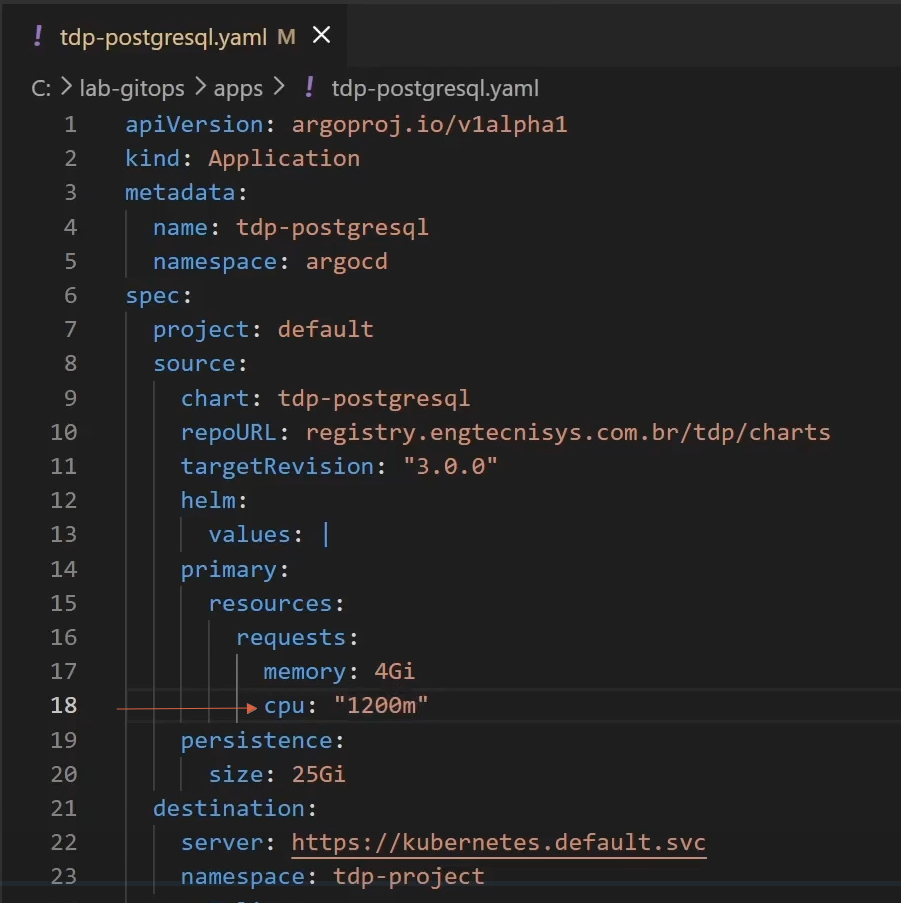
- Adjust the desired parameters in the file:
primary:
  resources:
    requests:
      memory: 4Gi
      cpu: "1"
persistence:
  size: 25Gi
primary:
  resources:
    requests:
      memory: 4Gi
      cpu: "1"
persistence:
  size: 25Gi
- Save and push the change:
git add .
git commit -m "config: adjust component parameters"
git push origin main
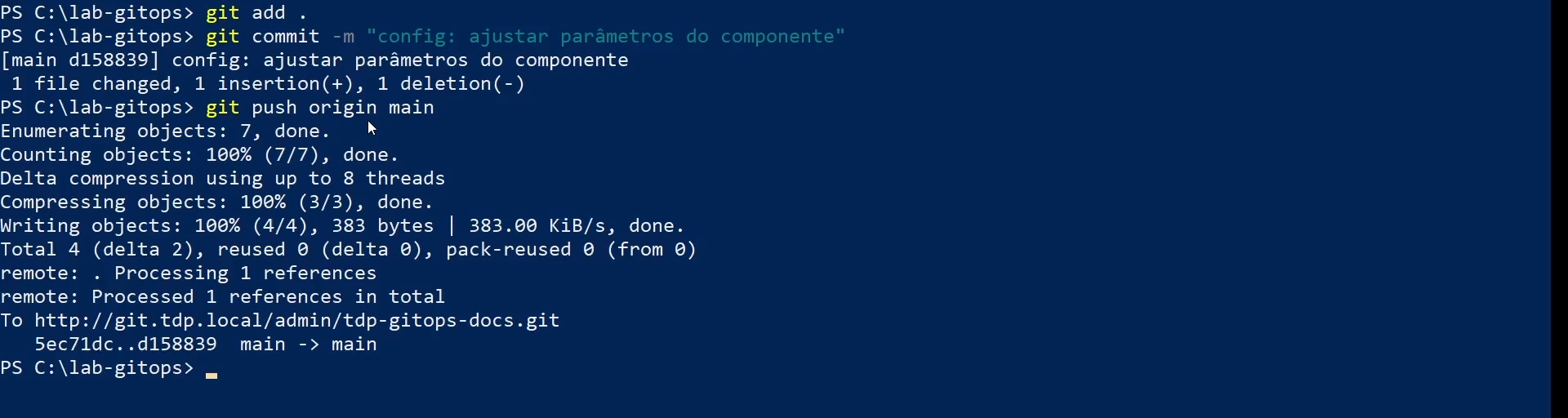
ArgoCD will automatically detect the change and start synchronization.
- Verify that the Application moves to
SyncedandHealthy:
argocd app list

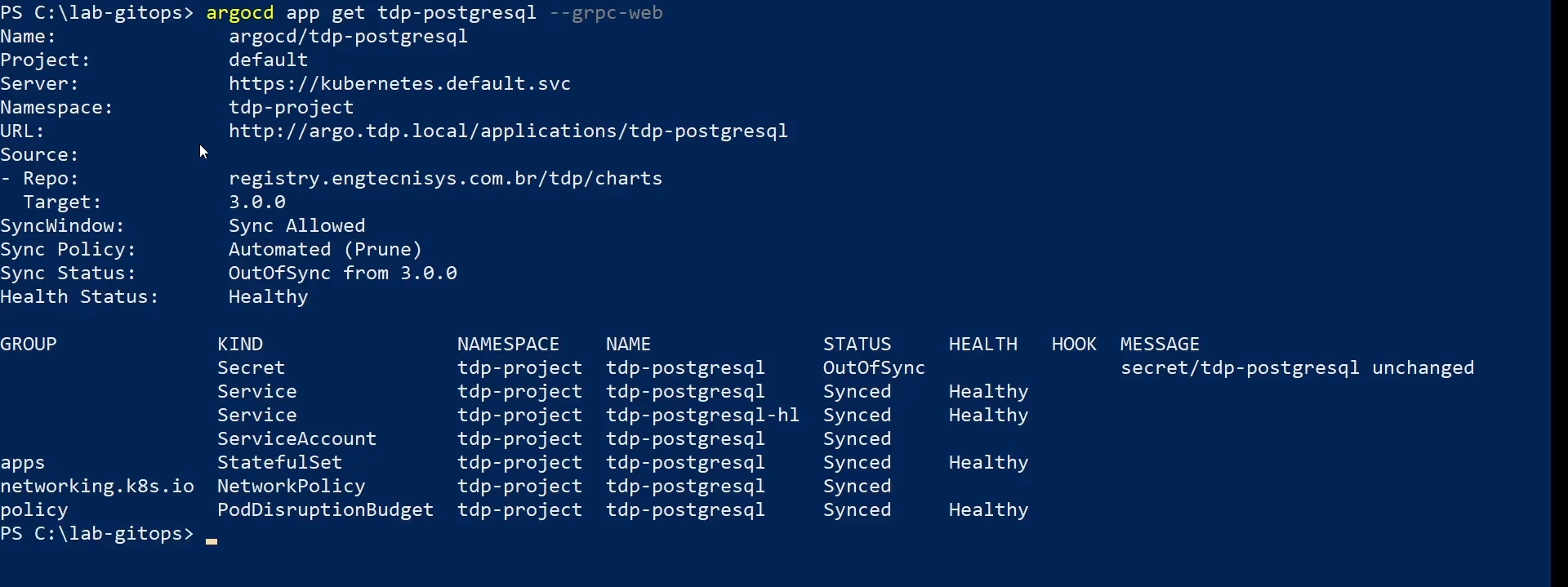
- To inspect the component's Application in detail:
argocd app get <component>
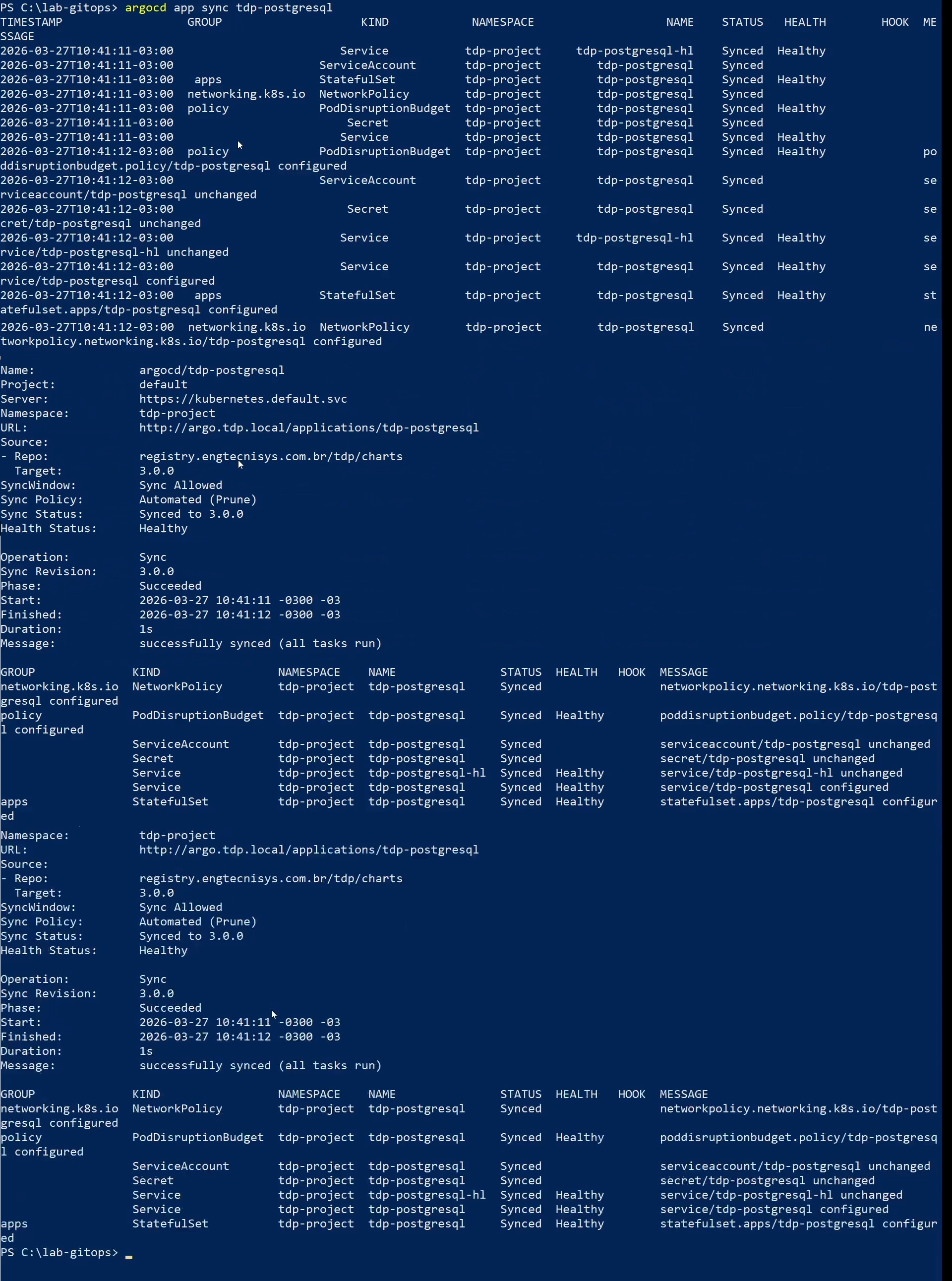
- If automatic synchronization is not enabled, or to apply the change immediately:
argocd app sync <component>
- Check the pods:
kubectl get pods -n <namespace>

For stateful components such as PostgreSQL, also validate:
kubectl get statefulset -n <namespace>

For components using Deployment, also validate:
kubectl get deploy -n <namespace>
Confirm that pods are in Running state and workloads show all replicas ready.
- Adjust parameters
- git push
- argocd app list
- argocd app get
- argocd app sync
- kubectl get pods
- kubectl get statefulset
Common patterns across TDP charts
TDP Kubernetes charts share some usage patterns, but the exact key structure may vary from component to component.
Confirm supported parameters in the component documentation here and, if needed, in the helm show values output for the version you are installing.
Namespace
Each component can be installed in a dedicated namespace or share a namespace with other components, according to the environment strategy:
# Dedicated namespace (illustrative example)
helm upgrade --install <release> oci://registry.tecnisys.com.br/tdp/charts/<chart> \
  -n <namespace> --create-namespace

# Same chart in a shared namespace with other components
helm upgrade --install <release> oci://registry.tecnisys.com.br/tdp/charts/<chart> \
  -n <namespace> --create-namespace
Resources (CPU and memory)
Many charts allow configuring CPU and memory requests and limits for the main pods. The position of these keys may vary in the component's values file:
<chart-prefix>:
  resources:
    requests:
      cpu: "500m"
      memory: "1Gi"
    limits:
      cpu: "2"
      memory: "4Gi"
Always define requests and limits to ensure Kubernetes schedules pods properly and to avoid resource shortage issues.
Data persistence
Charts that require persistent storage usually expose PVC (Persistent Volume Claim) options.
The path may vary by component:
<chart-prefix>:
  persistence:
    enabled: true
    size: 10Gi
    storageClassName: "<storage-class>"
    accessMode: ReadWriteOnce
For components running on multiple nodes that need concurrent access to the same volume, use ReadWriteMany (RWX) for accessMode.
Make sure your StorageClass supports this mode.
Ingress
Some charts support external exposure via Ingress.
When this option is available, the parameters are usually grouped under a component-specific block:
<chart-prefix>:
  ingress:
    enabled: true
    ingressClassName: "nginx"
    hostname: "<component-host>"
    path: /
    pathType: Prefix
    tls: true
Services (NodePort vs ClusterIP)
When the chart exposes Service options, the most common types are ClusterIP, NodePort, and LoadBalancer:
<chart-prefix>:
  service:
    type: ClusterIP
Custom values file
The recommended approach is to create a values file specific to your environment:
- Export the chart's default values:
helm show values oci://registry.tecnisys.com.br/tdp/charts/<chart> > values-default.yaml
- Create a copy with only the values you want to modify:
cp values-default.yaml my-values.yaml
-
Edit the
my-values.yamlfile with the desired configuration. -
Apply during installation or update:
helm upgrade --install <release> oci://registry.tecnisys.com.br/tdp/charts/<chart> \
  -n <namespace> --create-namespace \
  -f my-values.yaml
Environment-based configuration
Development environment
For development environments, use reduced resources and disable high-availability options where appropriate for the component:
<chart-prefix>:
  resources:
    requests:
      cpu: "250m"
      memory: "512Mi"
    limits:
      cpu: "500m"
      memory: "1Gi"
  replicaCount: 1
Production environment
For production environments, configure adequate resources, enable persistence when necessary, and adjust replication, authentication, and external integration as needed for the component:
<chart-prefix>:
  resources:
    requests:
      cpu: "1"
      memory: "2Gi"
    limits:
      cpu: "4"
      memory: "8Gi"
  replicaCount: 3
Secrets management
TDP charts follow security best practices for credentials and sensitive data.
Kubernetes Secrets
Credentials must be stored in Kubernetes Secrets, never as plain text in values files:
kubectl -n <namespace> create secret generic my-secret \
  --from-literal=password='<password>'
Referencing Secrets in the values file
In the values file, reference existing Secrets instead of placing passwords as plain text:
passwordSecret:
  name: "my-secret"
  key: "password"
Never store credentials in values files that will be versioned in Git.
Use Kubernetes Secrets, Sealed Secrets, or tools like HashiCorp Vault.
TDPConfigurations
Several TDP charts use the TDPConfigurations section for configuring shared services, such as external databases and S3 connections:
TDPConfigurations:
  externalDatabase:
    enabled: true
    recreate: false
    externalSecret:
      releaseName: "<tdp-postgresql-release>"
      area: "<area>"

  s3Connection:
    enabled: true
    secretName: "<secret-or-connection-name>"
    uri: "https://<s3-endpoint>"
recreate fieldThe recreate field controls whether the component's database should be recreated during a reinstallation:
false(default): keeps existing data. Use in production environments.true: drops and recreates the database. Use only when you are certain the database can be removed.
Helm Charts Registry
TDP charts are distributed via Tecnisys's OCI registry:
| Registry | Usage |
|---|---|
oci://registry.tecnisys.com.br/tdp/ | Stable and validated releases |
To access the registry, you must log in with the credentials provided by Tecnisys before installing or updating any chart:
helm registry login registry.tecnisys.com.br \
  --username <username> \
  --password <password>
Internal vs. external PostgreSQL
Several TDP components require a relational database to store their own metadata.
Each component's chart supports two modes:
| Mode | Description | When to use |
|---|---|---|
Embedded PostgreSQL (postgres.enabled: true) | Subchart installed alongside the component, self-contained | Development, isolated tests, temporary environments |
External PostgreSQL (postgres.enabled: false) | Uses the tdp-postgresql already installed in the cluster | Production, shared environments |
With a shared external PostgreSQL (tdp-postgresql), you centralize:
- Backups: a single backup point for all platform metadata databases
- Monitoring: metrics and alerts in one place
- Sizing: adjust
max_connectionsand resources once for the entire platform
Embedded PostgreSQL is convenient but isolated — each component manages its own database, which increases operational cost in production.
S3-compatible storage (Ozone)
Some TDP components need to access S3-compatible object storage to read or write files (input data, pipeline outputs, logs, DAGs).
In TDP Kubernetes, the S3 service is Apache Ozone (tdp-ozone).
When a component has TDPConfigurations.s3Connection.enabled: true, the chart automatically creates a Kubernetes Secret with the connection parameters (endpoint, access key, secret key).
This Secret is then referenced by the component's operators and connectors to access Ozone as if it were Amazon S3.
Configure the S3 connection when the component needs to:
- Read input data stored in Ozone (e.g., Spark reading Parquet)
- Write outputs to Ozone (e.g., results from Airflow pipelines)
- Persist files between runs (e.g., Airflow DAGs stored in Ozone)
If the component is used only with in-memory data or local PVCs, the S3 connection is not needed.
To access the configuration of a specific component, go back to the configuration index.