Connection Pool Configuration
A connection pool is a set of ad-hoc connections to databases, maintained so that connections can be reused when future requests to the database are made.
To enable this operation, PgSmart integrates with PgBouncer.
pgsmart pool config [Flags]
Flags:
-a, --agent=<agent>=> Alias, hostname, or IP address of the server where the desired PgSmart Agent is installed.-h, --help=> Help.-q, --quiet=> Non-interactive execution for controlling the component service (status|start|stop|restart|reload). Results can be viewed in the PgSmart Client log. Used along with the --agent option.
Non-interactive execution is disabled for this operation.
pgsmart pool config
-
Select the
PgSmart Agent(or Register new Agent). -
Select the
Connection PoolsSection (selection made with [space] key).
When selecting the Connection Pools section, the following operations are available:
- Listar - Allows listing existing connection pools
- Criar - Allows creating a connection pool
- Editar - Allows editing a connection pool
- Remover - Allows removing a connection pool
List configured connection pools
- Instructions
- Video
-
Select the
Listaroperation.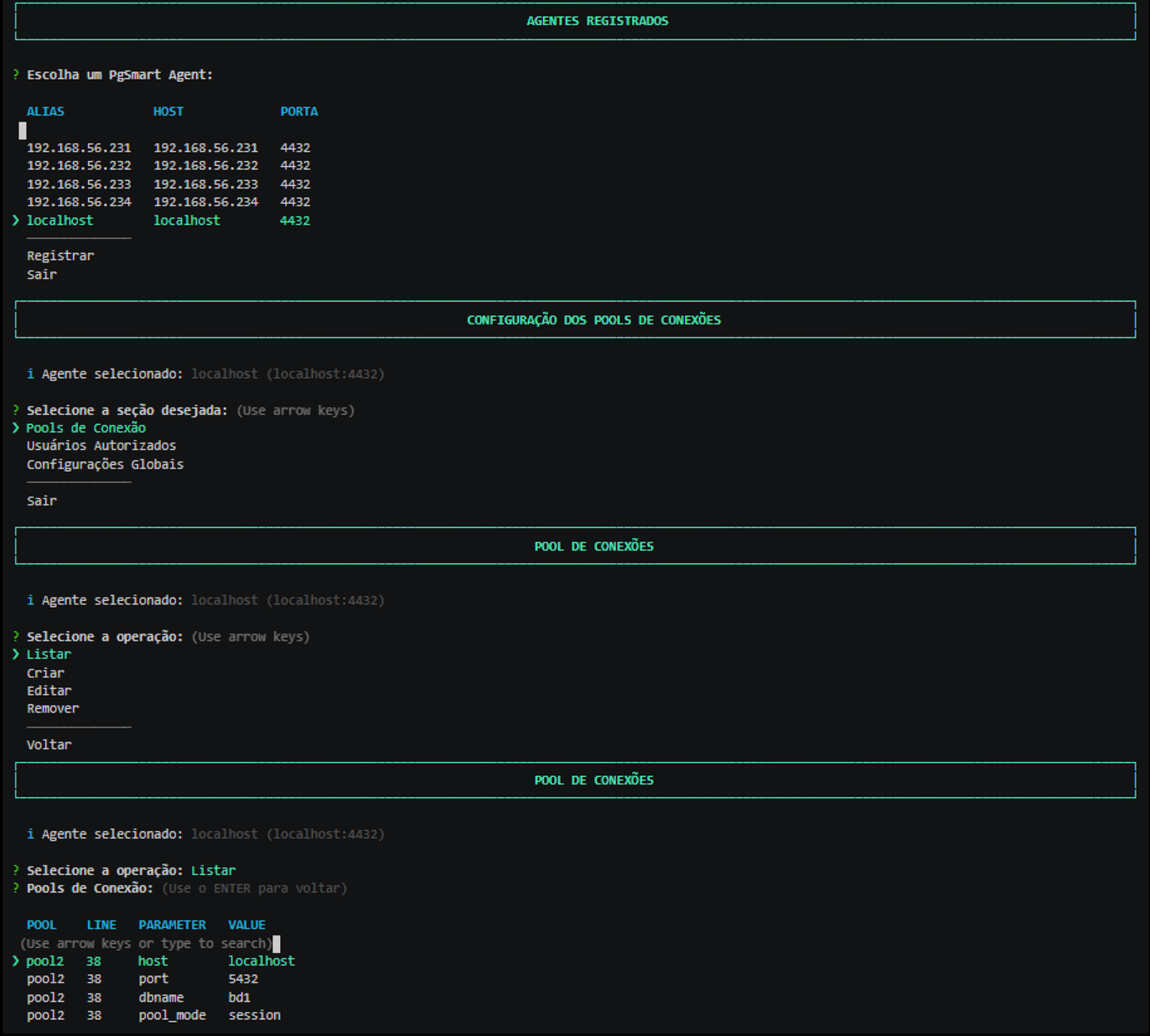 Figure 1 - Connection Pool Configuration - List
A list of configured connection pools will be displayed.
Create a Connection Pool
- Instructions
- Video
-
Select the
Criaroperation. -
Enter the
pool namefor applications/clients to connect to. ("*" means if a pool does not exist at the moment of database connection, a default PgBouncer pool will be used). -
Enter the
connection type. -
Enter the
connection IPfor the PostgreSQL instance [Default: localhost]. -
Enter the
connection portfor the PostgreSQL instance. -
Select the
Major Versionof PostgreSQL or the Data Directory (whichever requested). -
Enter the
Database Name. -
Confirm if you want to add advanced parameters for this pool (default parameters will be overridden).
If advanced parameters are confirmed:
8.1. Enter the Database connection user (user). [optional].
8.2. Enter the Authentication user to query the PostgreSQL instance (auth_user). [optional].
8.3. Enter the Maximum pool size (pool_size). [optional].
8.4. Enter the Reserved connections (reserved_pool). [optional].
8.5. Enter the Connect query (connect_query) executed after the connection is established (single quotes). [optional].
8.6. Select the Connection reuse mode. [optional].
8.7. Enter the Maximum number of database connections (max_db_connections). [optional].
8.8. Enter the Character encoding (client_encoding). [optional].
8.9. Enter the Date style (datestyle). [optional].
8.10. Enter the Timezone. [optional].
-
Confirm the creation of the connection pool.
noteParameters not provided will adopt the Global Parameters as defaults.
note-
At the end of the creation, PgSmart provides an example command to test the connection along with recommendations.
-
To test the connection, execute:
Terminal inputpsql -U <User> -h <IP-address> -p 6432 apppool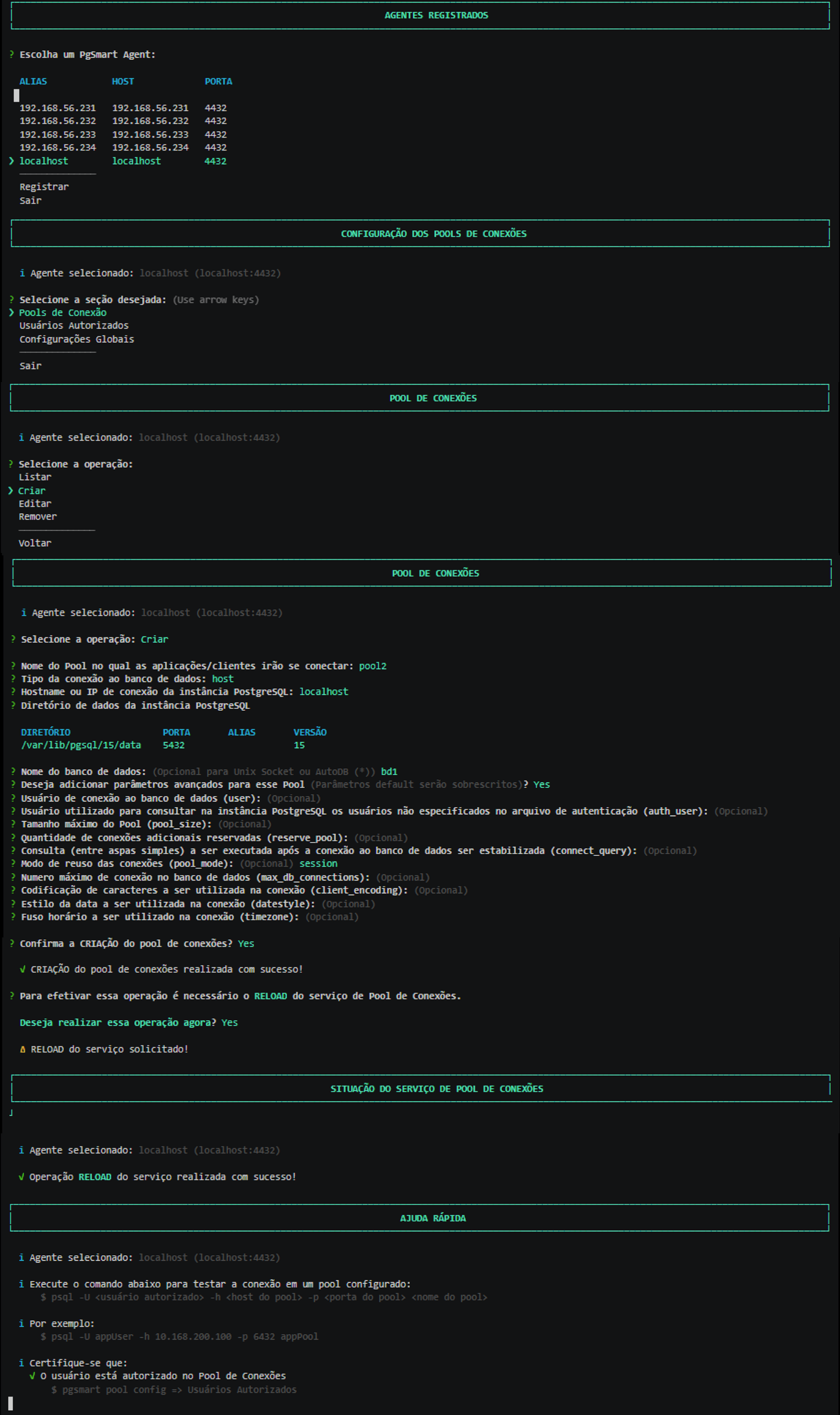 Figure 2 - Connection Pool Configuration - Creation
 -
Edit a Connection Pool
- Instructions
- Video
-
Select the
Editaroperation.notePgSmart will list the already configured pools.
-
Select the
Configured Poolyou want to change. -
Enter the
Pool Namefor applications/clients [Default: pool1]. -
Select the
connection type. -
Enter the
IP/hostname of the PostgreSQL instance[Default: localhost]. -
Enter the
PostgreSQL instance port[Default: 5432]. -
Select the
Major Versionof PostgreSQL. -
Enter the
Database Name(optional for Unix Socket or AutoDB). -
Confirm editing of advanced parameters for this pool.
If advanced parameters are confirmed:
9.1. Enter the
Database connection user(user). [optional].9.2. Enter the
Authentication userfor the PostgreSQL instance (auth_user). [optional].9.3. Enter the
Maximum pool size(pool_size). [optional].9.4. Enter the
Reserved connections(reserved_pool). [optional].9.5. Enter the
Connect query(connect_query) after connection stabilization. [optional].9.6. Select the
Connection reuse mode. [optional].9.7. Enter the
Maximum database connections(max_db_connections). [optional].9.8. Enter the
Character encoding(client_encoding). [optional].9.9. Enter the
Date style(datestyle). [optional].9.10. Enter the
Timezone. [optional].noteParameters not informed will inherit defaults from Global Parameters.
-
Confirm the edition of the connection pool.
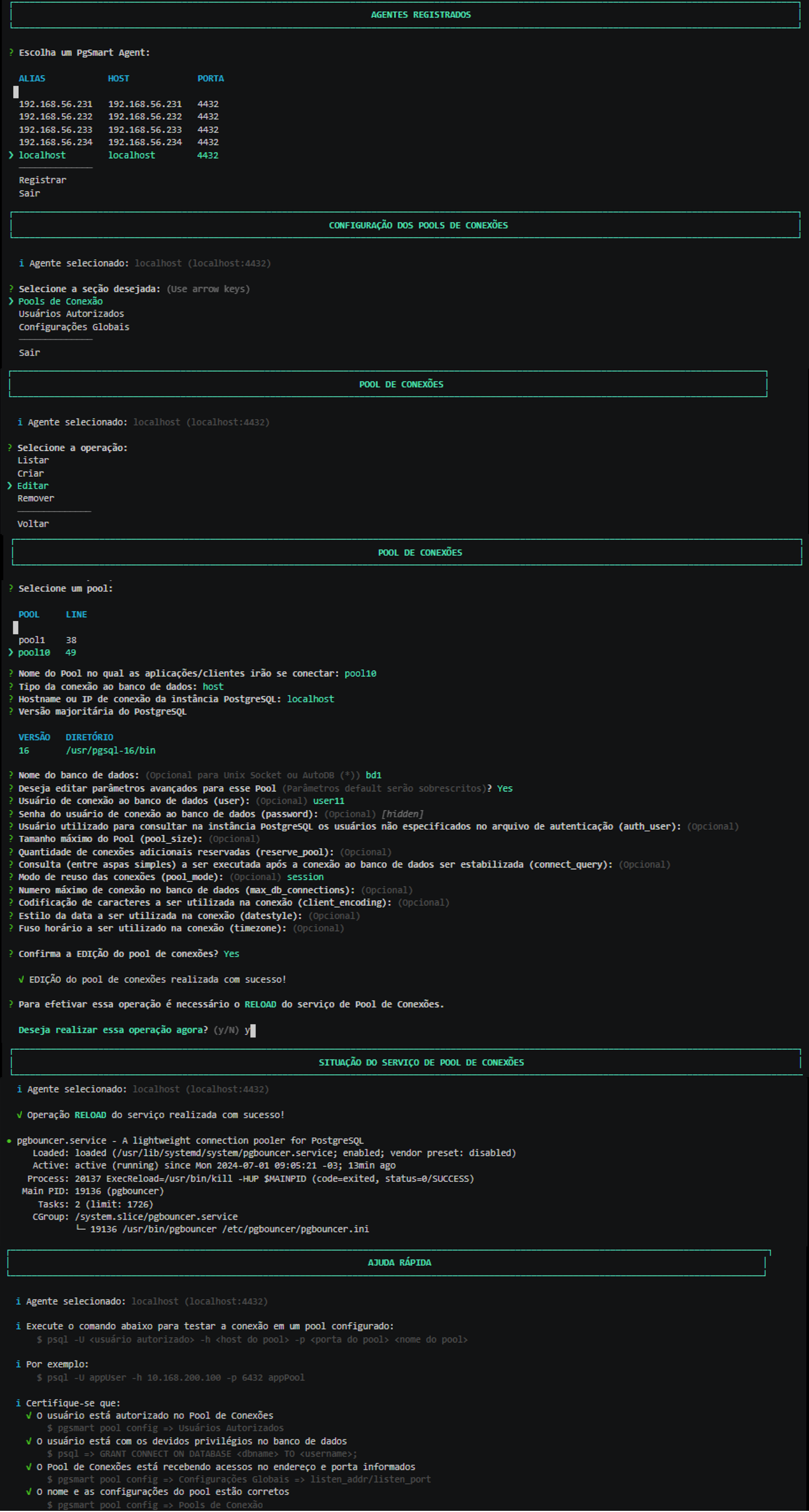 Figure 3 - Connection Pool Configuration - Editing
Remove a Connection Pool
- Instructions
- Video
-
Select the
Removeroperation.notePgSmart will list the already configured pools.
-
Select the
Configured Poolyou want to remove. -
Confirm the removal of the connection pool.
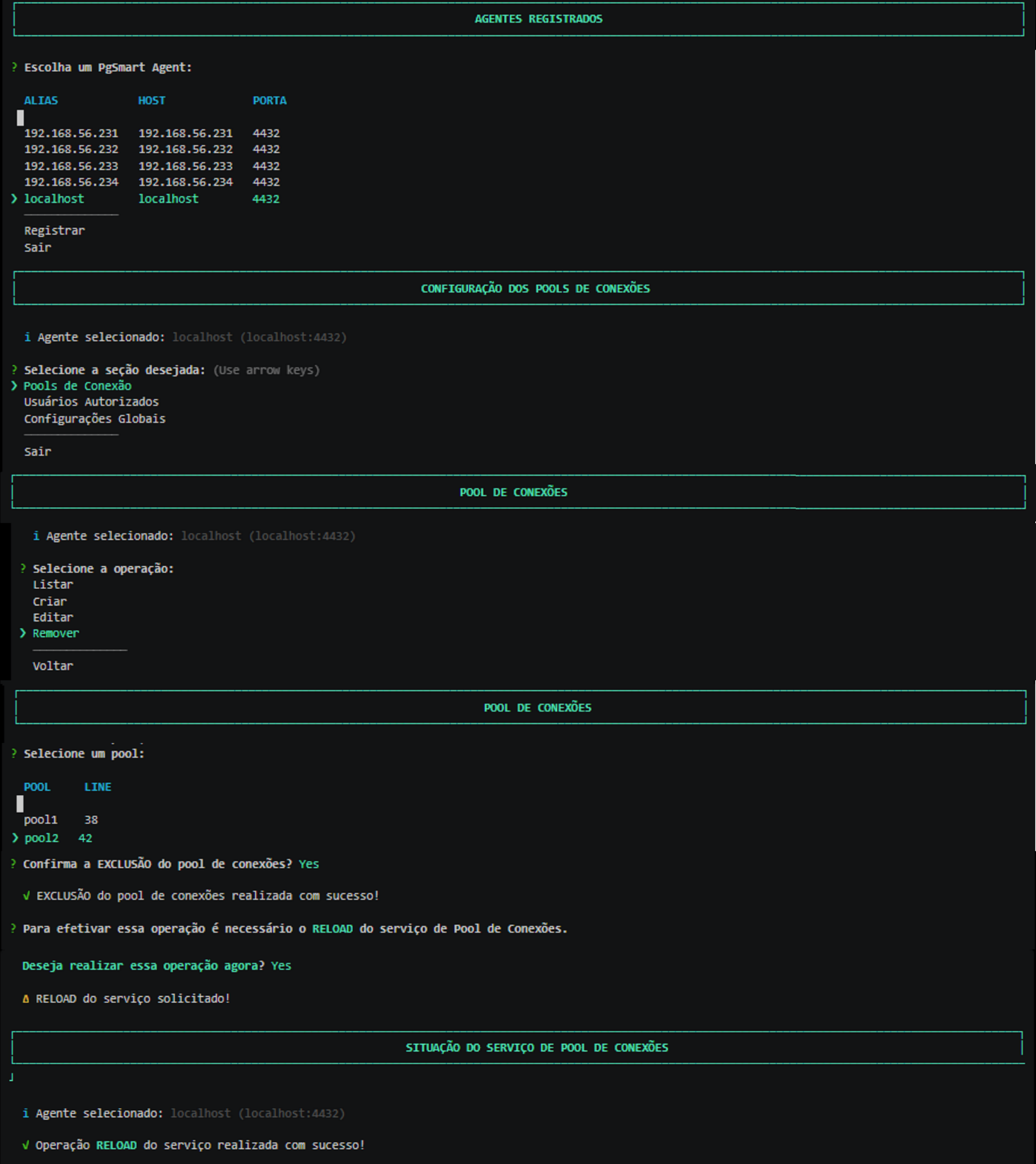 Figure 4 - Connection Pool Configuration - Removal